
OpenReceive for WordPress + WooCommerce
Accept Bitcoin & Stablecoin Payments With WordPress + WooCommerce
Add a self-hosted Bitcoin Lightning and stablecoin gateway to WooCommerce with a plugin from the WordPress.org directory. WooCommerce keeps every order, stock change and email; OpenReceive settles the payment in your wallet.
Plugin
Tested live · Oct 14, 2026 · 0.4.26
Set up in wp-admin — No code: install the plugin from your WordPress dashboard, paste a wallet code, save. Or Copy agent directions for a coding agent.
Why OpenReceive
- Native WooCommerce checkout. Classic and block checkout both return the customer to WooCommerce's order-pay page, while payment completion stays in WooCommerce's normal order lifecycle.
- No separate payment service. The plugin stores durable payment attempts in the existing WordPress database and ships its checkout assets inside the plugin.
- Receive-only wallet permissions. The gateway verifies the NWC code before saving and refuses spend-capable credentials unless the merchant explicitly overrides the guard.
- Stablecoins, optional. An optional LSC provider lets customers pay in USDT, USDC, ETH or SOL while the merchant still receives Bitcoin in the configured wallet.
What your customers see
WooCommerce keeps its own cart and checkout. On the order-pay page the customer picks how to pay: Bitcoin, or with a swap provider set up, USDT, USDC, SOL or ETH. Every option settles to your wallet in Bitcoin.
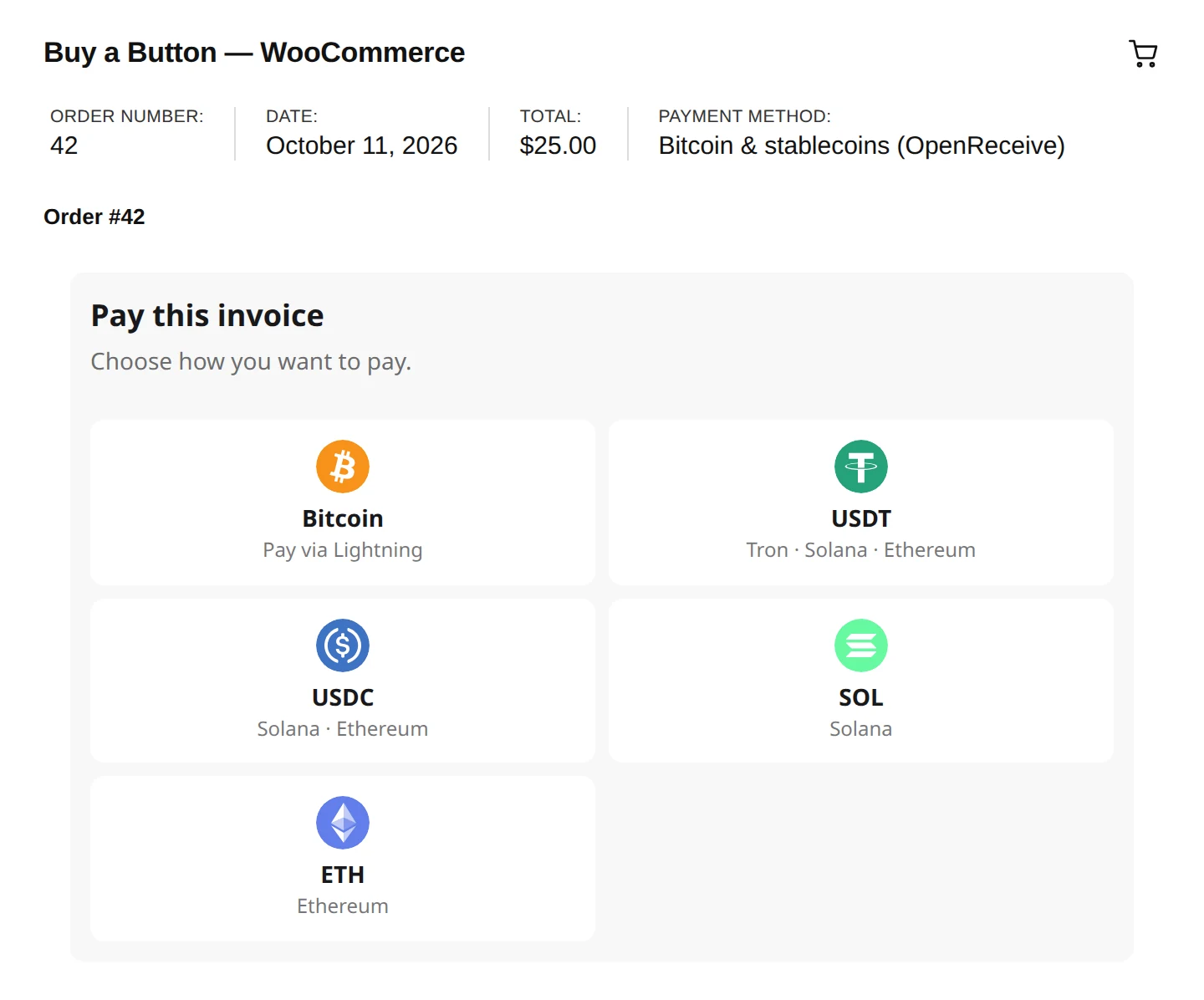
Set up in your WordPress dashboard
Install the plugin from the WordPress.org directory and paste your wallet code. No code, and no coding agent.
Requires WordPress ≥ 6.6, WooCommerce ≥ 9, PHP ≥ 8.2, GMP and sodium. Check your host
In wp-admin (no code)
Before you start:
- Get a receive-only NWC code — From your Lightning wallet. The store uses it to create invoices and watch for payment; it can never spend.
- Set up a swap provider (optional) — Only if customers should be able to pay in USDT, USDC, ETH or SOL. A swap provider converts their payment and settles it to you in Bitcoin.
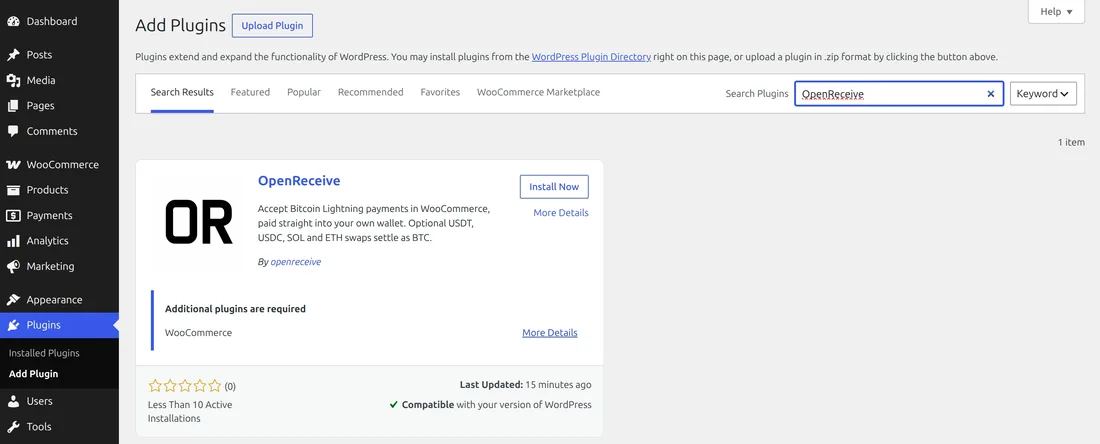
1. Install the plugin — In your WordPress dashboard, go to Plugins → Add Plugin and search for OpenReceive. Click Install Now.
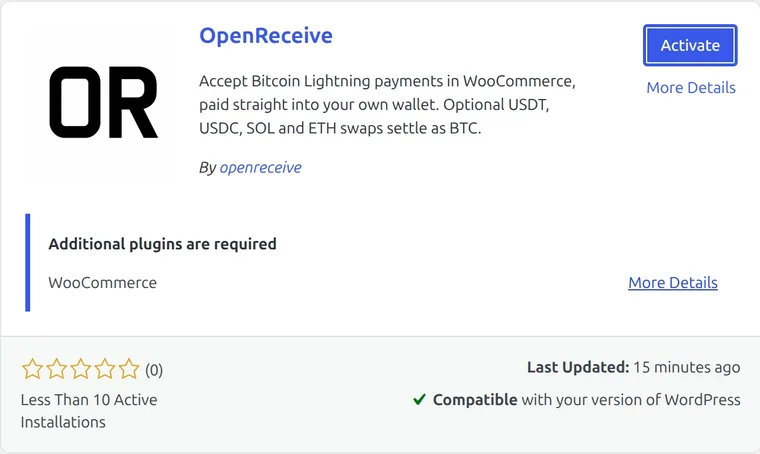
2. Activate it — Click Activate. WooCommerce must already be installed and active.
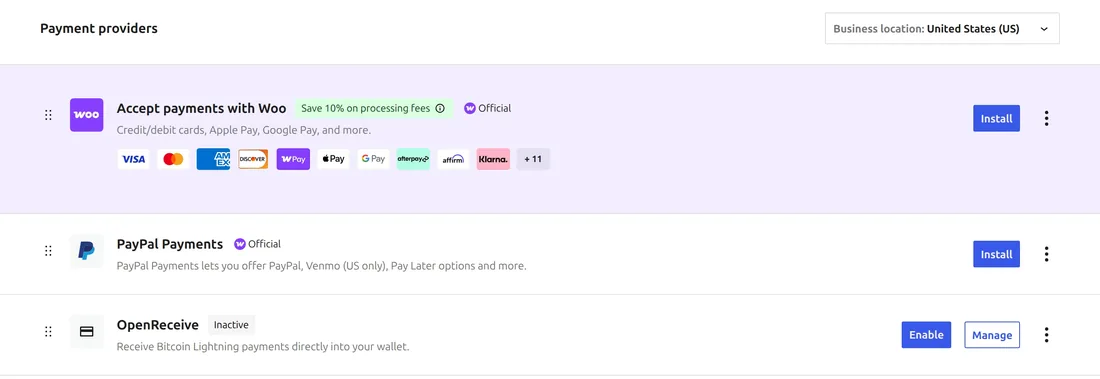
3. Open its settings — Go to WooCommerce → Settings → Payments (or Payments in the sidebar) and click Manage next to OpenReceive.
4. Paste your codes — Paste your NWC code. To accept stablecoins, also paste your Lightning Swap Connect code (optional). The fields never display a saved code.
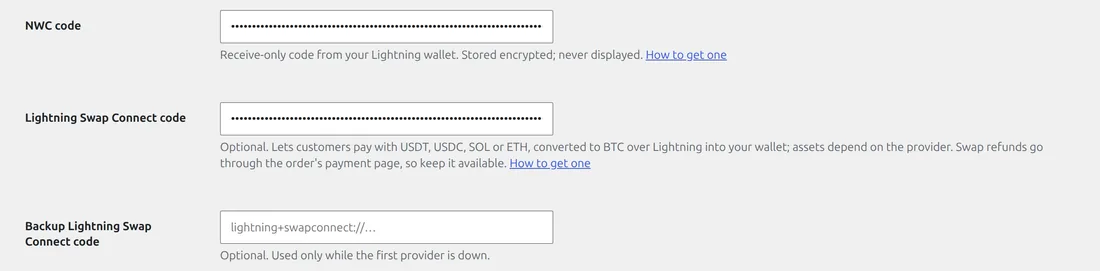
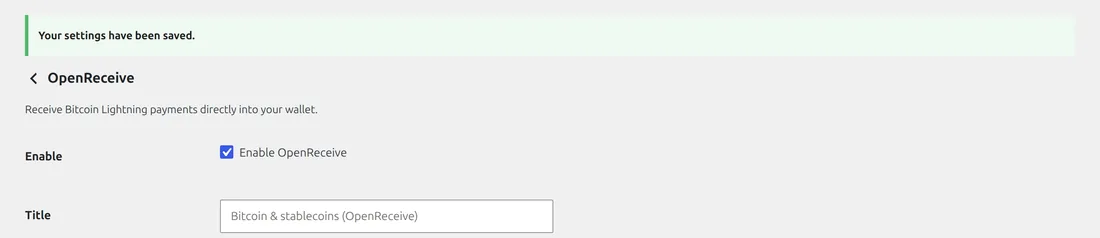
5. Enable and save — Scroll up, tick Enable OpenReceive, then click Save changes at the bottom. Saving checks your wallet first, so it can take 10–15 seconds. Checkout now offers Bitcoin Lightning (OpenReceive), or Bitcoin & stablecoins (OpenReceive) once a swap code is saved.
Prefer the command line? wp plugin install openreceive --activate does steps 1 and 2.
With a coding agent
Your coding agent installs the plugin and walks you through the settings. Copy the directions and paste them into Claude Code, Codex or Cursor. Copy agent directions
Full WordPress + WooCommerce quickstart · Example shop
How it runs
- Tested on
- WordPress 7.1 with WooCommerce, on PHP 8.2
- Databases
- MySQL 8, WordPress's own database
- Secrets
- The plugin's settings, encrypted with keys derived from WordPress's auth keys, or OPENRECEIVE_NWC_URI in wp-config.php
- Refunds
- Refund a settled Lightning payment from your own wallet: the wallet code is receive-only. A payer reclaims a swap deposit that never converted from the order's pay link.
- Mobile apps
- No app SDK. Payers pay on the store's web checkout, and an app that opens it follows the same app store rules as any web checkout.
Practical questions
- Which currencies can customers pay with?
- Bitcoin over Lightning, always. With a swap provider configured, also USDT on Tron, Solana or Ethereum, USDC on Solana or Ethereum, ETH and SOL, each converted into the same Lightning payment. Automated swaps guide
- Where does the Bitcoin go?
- Into the wallet behind the store's receive-only NWC code. The plugin records settlement durably, then calls WooCommerce payment_complete so stock, status and emails follow the store's normal workflow. WooCommerce quickstart
- What wallet do I need?
- Any wallet that issues receive-only NWC (Nostr Wallet Connect) codes, hosted or self-run. The code must be able to create invoices and read their status, and must not be able to spend. Get a receive-only NWC code
- What does it cost?
- OpenReceive is open source and free. Fees charged by your wallet provider, by a swap provider or by Lightning routing belong to those services and are outside OpenReceive's scope.
- What do I need to deploy?
- WordPress 6.6 or later, WooCommerce 9 or later, 64-bit PHP 8.2 with GMP and sodium, and the OpenReceive plugin from the WordPress.org directory. The WordPress server needs neither Node nor Composer. WooCommerce quickstart
Add OpenReceive to WordPress + WooCommerce
Copy agent directions · Full quickstart · Example shop · API reference · Guides