Bitcoin checkout on Vercel and v0
v0 builds Next.js apps that run on Vercel, and OpenReceive’s Next.js package runs in them as is. Your app’s own server code creates each Lightning invoice, the payment goes straight to your wallet, and payment attempts are stored in your app’s Postgres database. There is no OpenReceive account, no API key and no background worker.
Optional swaps let customers pay with USDT, USDC, SOL, and ETH. A swap provider you configure converts the payment to BTC over Lightning, and it settles into the same wallet. Available assets and networks depend on the provider.
Use @openreceive/* 0.4.19 or newer. Earlier versions cannot reach the wallet
from a Next.js 16 production build.
Before you start
- A receive-only NWC code from your Lightning wallet (get one). It can create invoices and read payments, but it cannot spend.
- Optional: a swap provider code, for USDT, USDC, SOL and ETH (set one up).
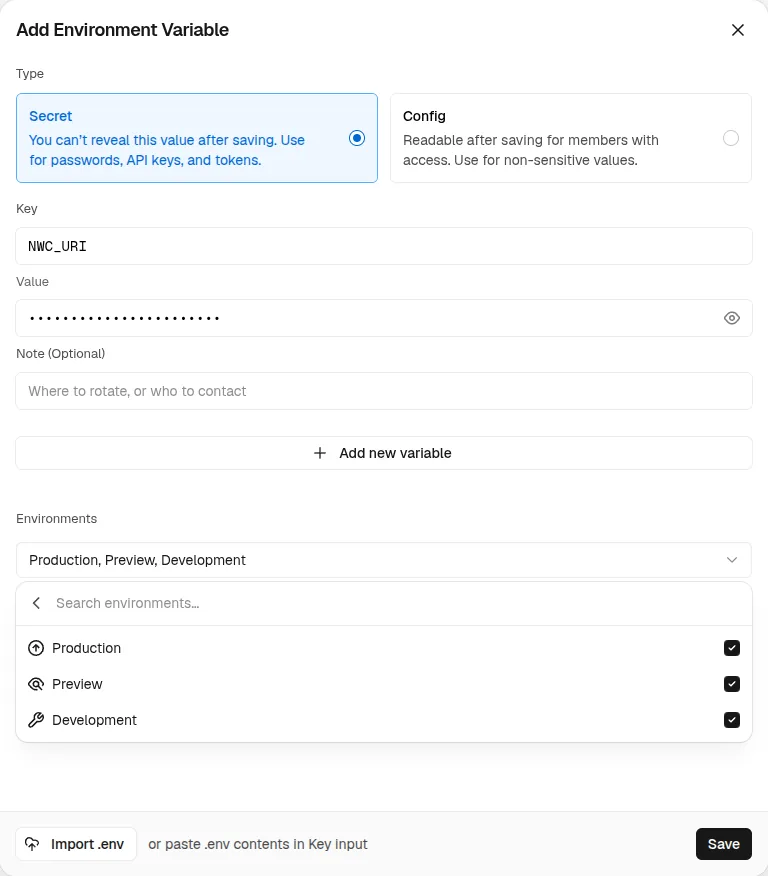
Put both in the project’s environment variables in Vercel, never in the chat. Give each one all three environments, Production, Preview and Development: the v0 preview only sees Development variables, so a code set only for Production leaves the preview’s checkout unavailable.
Vercel’s free Hobby plan is fine for a demo. It is for personal, non-commercial use only, and taking payments from visitors counts as commercial under Vercel’s fair use guidelines. A shop that sells for real needs a Pro plan.
Start from the starter
The Next.js + Postgres starter is a one-product shop with checkout already wired.
-
Click Deploy in its README. Vercel copies the starter into a new GitHub repository: pick the Git Scope and a name, then Create. If you have deployed the starter before, change the name: Vercel only says
openreceive-starteris taken after you click Create.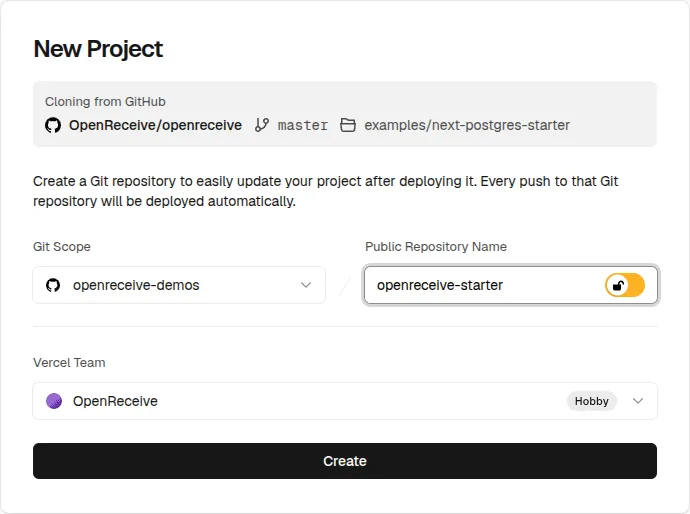
On the Hobby plan, a repository inside a GitHub organization must be public. If Vercel says a private GitHub organization needs a Pro plan, click the lock icon to make the repository public. One under your personal account can stay private. When GitHub asks which repositories Vercel may use, install it only where this project lives, not on every repository you own.
-
Click Add next to Neon, keep the Free plan, then Continue, Create and Done. Vercel gives the database a random name, such as
neon-canary-branch, and any name works. The starter does not use Neon’s Auth, so you can turn it off. Our test left it on.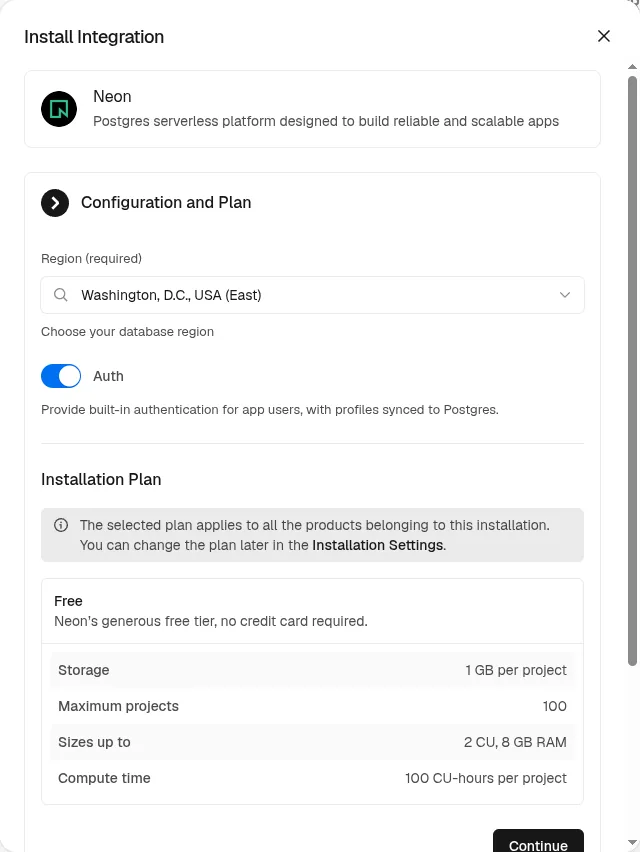
-
Paste your code into
NWC_URIand click Deploy. Vercel sets it for Production, Preview and Development, and the first build creates the tables.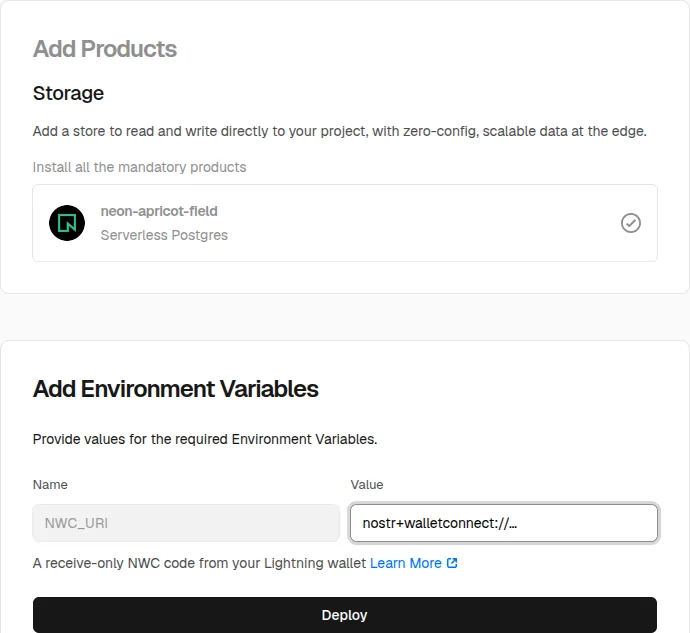
The shop is now live on Vercel. The next three steps are only for changing it with v0; with your own editor or another coding agent, clone the new repository instead.
-
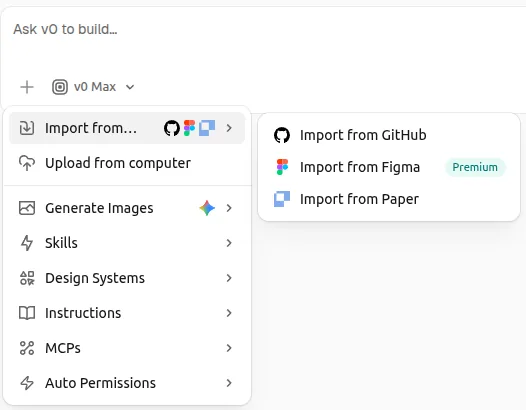
In v0, start a new chat, open the + menu, choose Import from… → Import from GitHub, and pick the new repository.
-
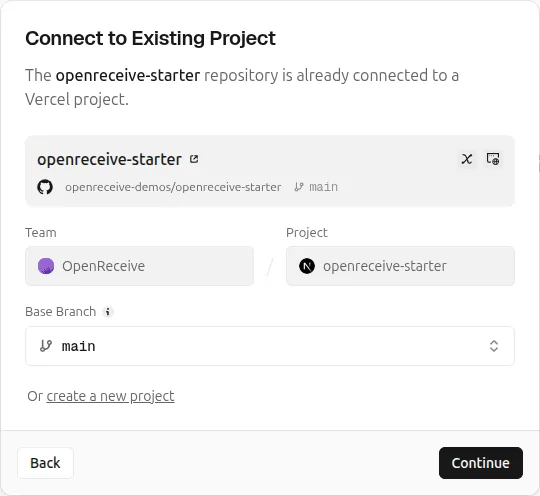
v0 sees that the repository already has a Vercel project. Click Continue to connect the chat to it, so the preview gets the database and the environment variables.
-
Ask v0 for the shop you want: products, pages, design. Keep the payment route’s three hooks,
authorize,amountForandonPaid, pointed at your orders.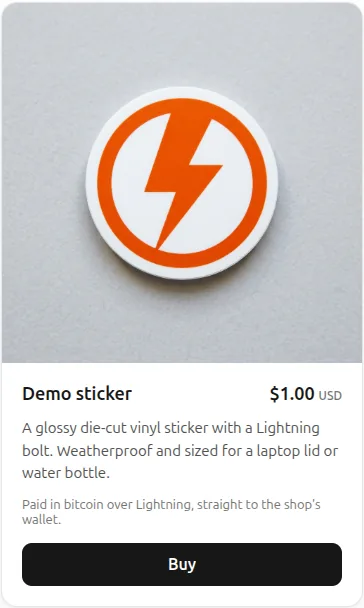
Add checkout to an existing Next.js app on Vercel
No v0 needed: the Next.js quickstart is the code, and Vercel only supplies the database and the environment.
- Add a Postgres database to the Vercel project, for example Neon from the project’s Storage tab. Use its pooled URL for the app and its direct URL for creating the tables (serverless hosts explains why).
- Add
NWC_URI(andLSC_URI_PRIMARY) under the project’s Settings → Environment Variables, as Secret, for Production, Preview and Development. - Follow the Next.js quickstart, or hand a coding agent the Next.js agent directions, then push: Vercel deploys it.
Add checkout to an existing v0 app
-
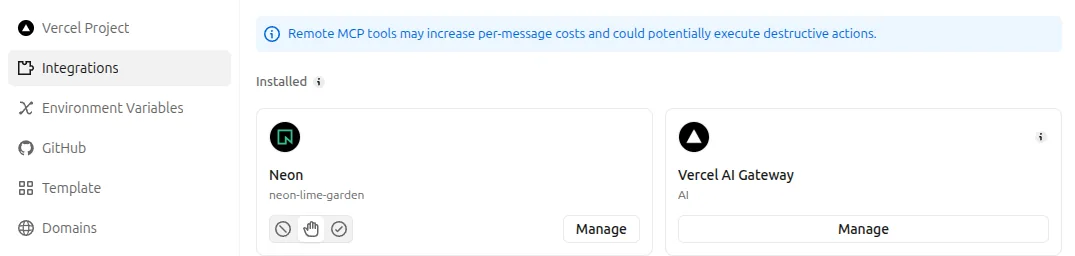
Connect a database. When v0 suggests Neon in the chat, click Install. Otherwise open Project menu
...→ Settings → Integrations and add Neon. It addsDATABASE_URL, a pooled URL for the app, andDATABASE_URL_UNPOOLED, a direct URL for creating tables. These two are the only ones the app uses. Neon adds more, such asPOSTGRES_URL_NON_POOLINGandNEON_PROJECT_ID, and you can leave them.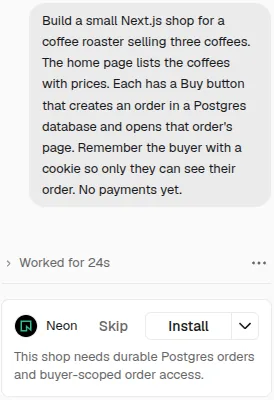
-
Add
NWC_URI(andLSC_URI_PRIMARY) in Vercel. v0’s Settings → Environment Variables only lists them: click Open in Vercel.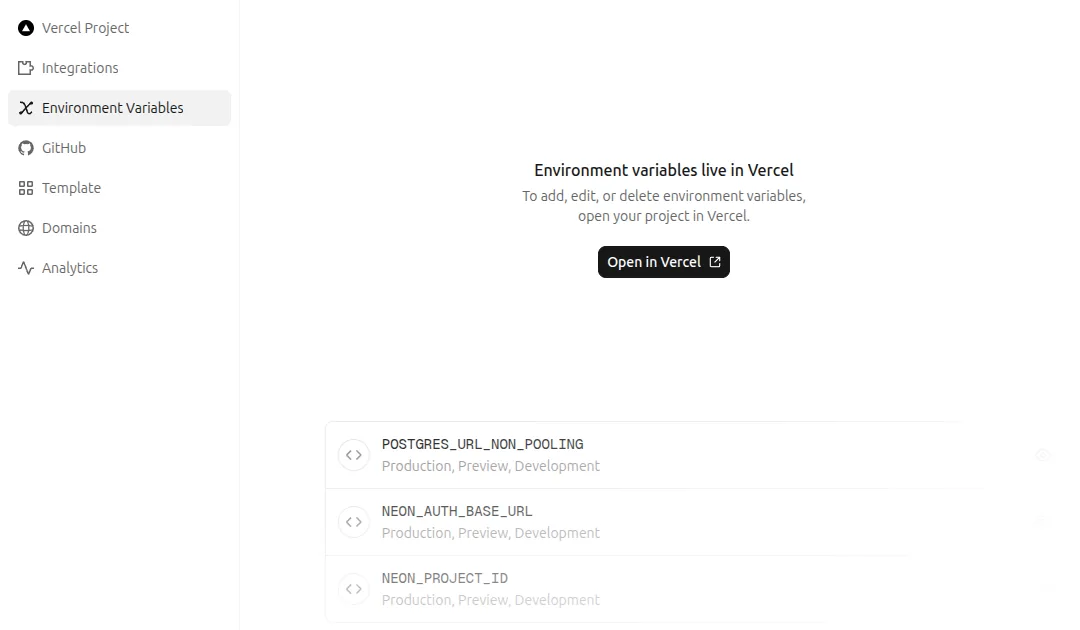
Then click Add Environment Variable, keep the type Secret, and tick Production, Preview and Development.
-
Send v0 this prompt:
Add Bitcoin Lightning checkout to this app with OpenReceive. Download the directions with your terminal and follow them exactly:

curl -fsSL https://openreceive.org/agent-directions/next/full.md

NWC_URI and LSC_URI_PRIMARY are already set as this project's environment variables, so do not ask me for them. Store payments in the Neon database: a pg Pool on DATABASE_URL for the app, and DATABASE_URL_UNPOOLED to create the tables. Use @openreceive packages 0.4.19 or newer.
Bitcoin only, with no swap provider? Then in the prompt, replace
NWC_URI and LSC_URI_PRIMARY are already set with
I want Bitcoin only, with no swaps. NWC_URI is already set.
If v0 asks you to approve the curl command, approve it: that is how v0
reads the directions.
The directions tell v0 how to map the three hooks onto your existing orders and how to render the checkout. In our test v0 finished in about five minutes.
Check it
Open the preview in its own tab with the arrow button in the preview’s address bar. Inside v0’s preview pane the browser can drop the shop’s cookie, and the checkout then says “Not authorized”.
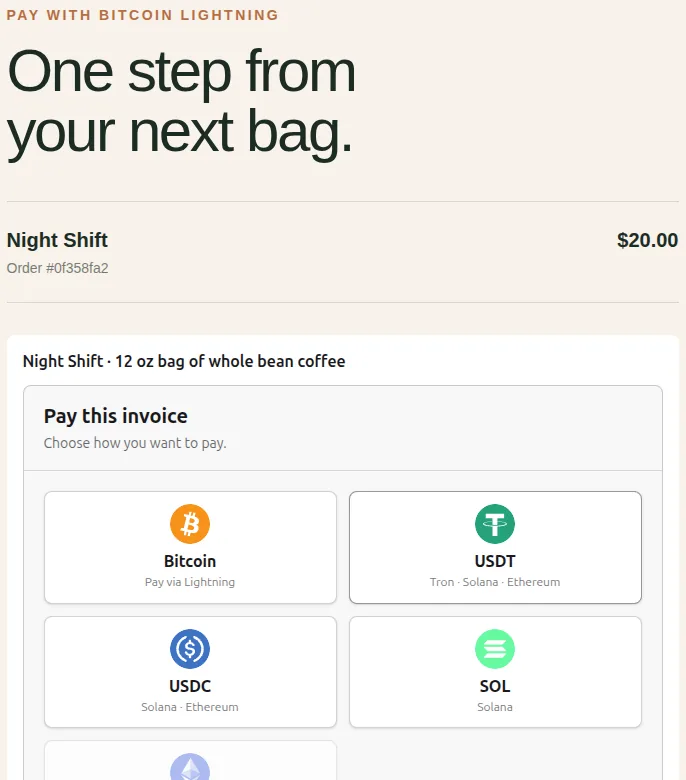
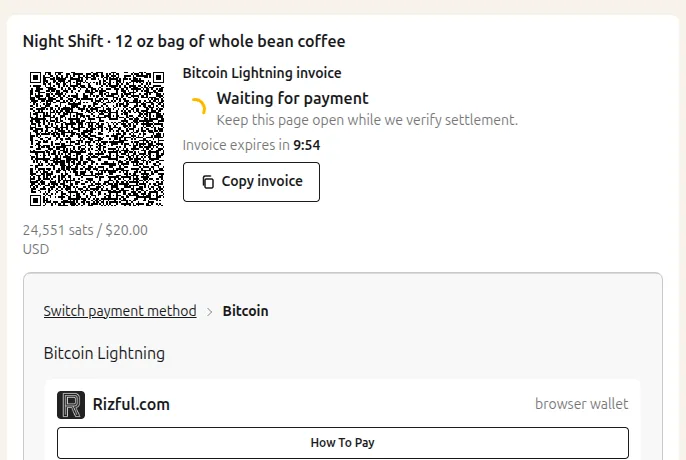
In the new tab, place an order and open its checkout. You should see the payment methods and, after you pick Bitcoin, a Lightning invoice in sats. Each swap has a minimum amount set by the provider, so on a small order some coins are greyed out and show their minimum.
If the checkout says “The payment service is not available”, the preview
started before you added NWC_URI: restart the preview so it loads the new
variables. Otherwise check the preview’s logs: usually the code is missing
from the Development environment, or it is not receive-only. v0’s own docs
say sensitive variables do not reach the v0 preview, but in our test a
Secret NWC_URI with Development ticked worked there.
Pay a small order from your wallet to see it settle: the checkout shows the
payment as received, and onPaid marks the order paid.
How it runs on Vercel
- No worker or cron job. Each request to the payment routes also checks the wallet for settled invoices, through a lock in your database. A payer who closes the tab is settled on the next request. Vercel’s once-a-day Hobby cron is not needed.
- Pooled database URL. Vercel functions reach Neon through its transaction
pooler. OpenReceive’s storage is tested against transaction pooling with
pg, Knex, Prisma (@prisma/adapter-pg) and TypeORM. - Node runtime. The payment route runs on Node (
runtime = "nodejs"), never the Edge runtime. - Rate limiting. Keep
rateLimiting: truewithtrustProxyIpHeader: true. Vercel setsx-forwarded-for, so the limit applies per payer. - Keep order pages reachable. A payer with a swap in progress comes back
through
/checkout/<order id>to claim a refund. Keep the swap’s payment hash too, and pass it back asresumePaymentHash: without it, the page opens on the payment methods instead of the refund. See swap refunds.
More detail: Next.js quickstart, Payment storage, Security.